Configure Split Charges Reasons
When the Allow Split Charges, checkbox is selected, users can configure reasons to be selected when splitting charges posted to a reservation in the Split Charge Reasons screen (All Settings ➜ Reservations ➜ Split Charge Reasons). By default, the reasons are configured at the property-level. Users may select the Configure for Tenant option to configure reasons at the tenant-level.
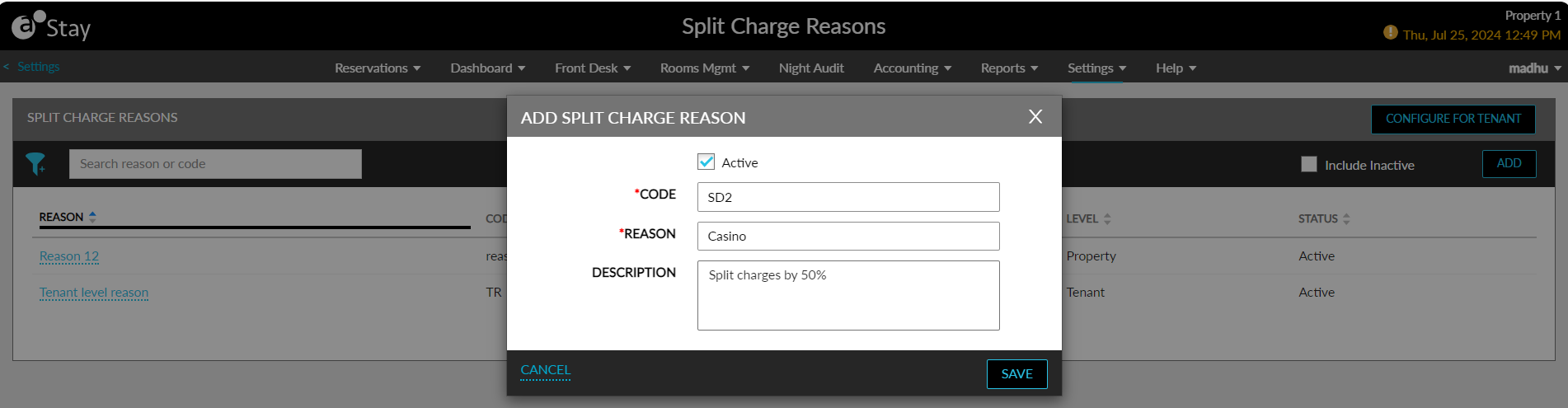
When users click Add, the Add Split Charge Reason pop-up screen appears that displays the following fields:
|
Field |
Description |
|---|---|
|
Active |
Select this checkbox to create active reasons. |
|
Code |
This is a mandatory field that allows users to configure a unique code for a split charge reason. This field accepts a maximum of 20 characters. |
|
Reason |
This is a mandatory field that allows users to configure a unique reason that can be selected when splitting charges. This field accepts a maximum of 64 characters. |
|
Description |
This is an optional field that allows users to enter a description for the reason. |
When users click Save, the reason is saved and displayed in the Split Charge Reasons screen. The details of the reasons configured are displayed in the following columns:
|
Field |
Description |
|---|---|
|
Reason |
The reason name. |
|
Code |
The reason code. |
|
Description |
Description of the reason. |
|
Level |
The level at which the reason is configured (tenant or property). |
|
Status |
The reason status. |
All columns can be sorted. Users can search for a reason using the reason name or code. The records can be filtered based on the level at which the reason is configured. By default, only the active reasons are displayed. Users must select the Include Inactive checkbox to view the inactive reasons.
When users with the StayWriteTenantSplitChargeReasons permission click the Configure for Tenant option, the following message will be displayed as a green banner: You are currently configuring at a tenant level. This option is not displayed to users without the permission.
When users click Add, the Add Split Charge Reason pop-up screen appears that displays the mentioned fields. In addition to the mentioned fields, the flag, Allow Properties to Deactivate, will be displayed on this screen. This flag is enabled by default. When enabled, the reasons created at the customer-level can be deactivated by the properties under the tenant.
To continue configuring reasons at the property-level, users must click the Configure for Property option.